 ScreenSage Pro
Zoom Timeline Editing
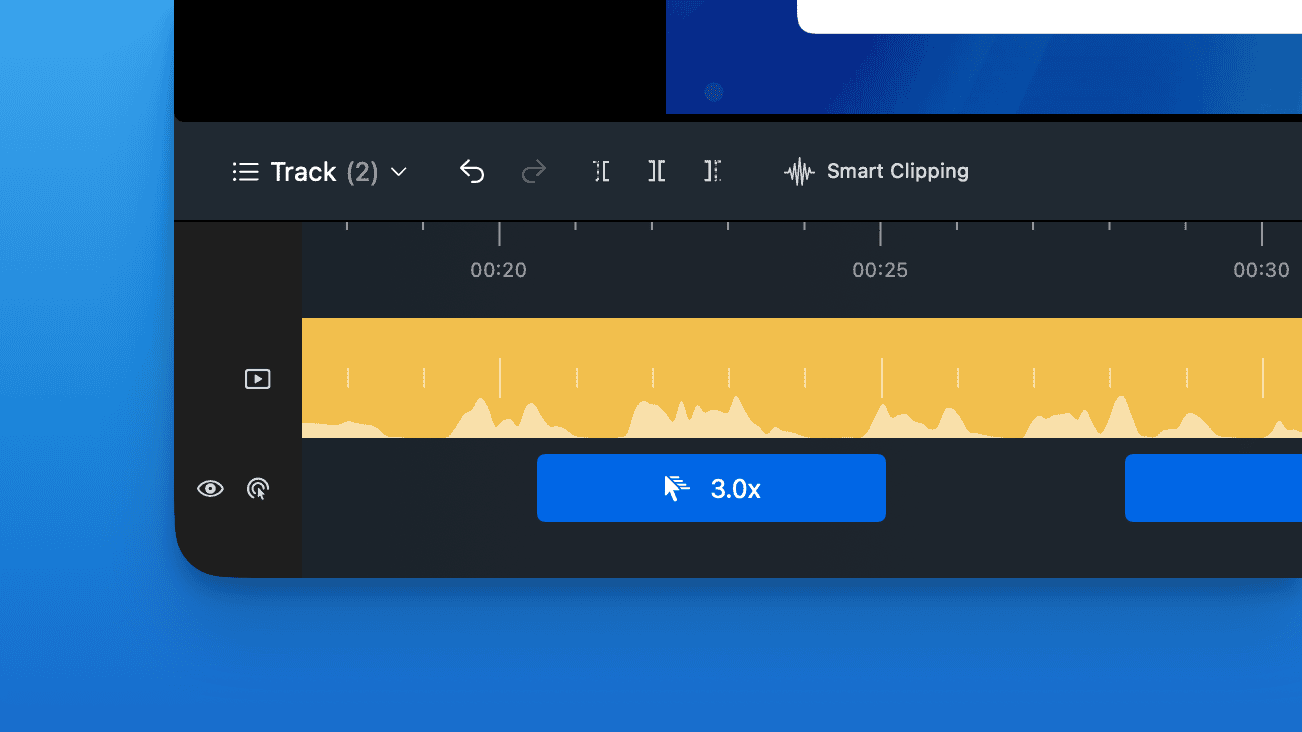
The ScreenSage Pro zoom timeline is where you manage all zoom segments. By default, the system auto-generates zooms based on mouse clicks — each zoom appears as a blue block on the timeline.
In the editor, blue blocks represent individual zoom shots, clearly visible throughout your editing session.
- Time Range: Block position and length define the zoom's duration
- Zoom Mode: Icon on the block indicates the current mode
- Zoom Level: Number on the block shows magnification factor
Timeline Operations
- Adjust timing: Drag block edges to change duration; drag the whole block to reposition
- Split segment: Select a segment and click "Split" to divide it at the playhead — both halves inherit original properties
- Resize: Drag left/right edges to modify segment length
Preview
Edit Zoom Properties
Click any zoom segment to open the settings panel on the right. Manually configure position and zoom ratio.
The current modes are Auto Track, Track Text Cursor, and Fixed Center. Auto Track follows the recorded pointer; Track Text Cursor follows the text caret when the system provides a usable position; Fixed Center keeps the shot on a manually chosen point.
Optionally add 3D effects.
Preview
See related docs for advanced mode switching techniques.