 ScreenSage Pro
Getting Started
Permissions Setup
Screen Recording & Accessibility
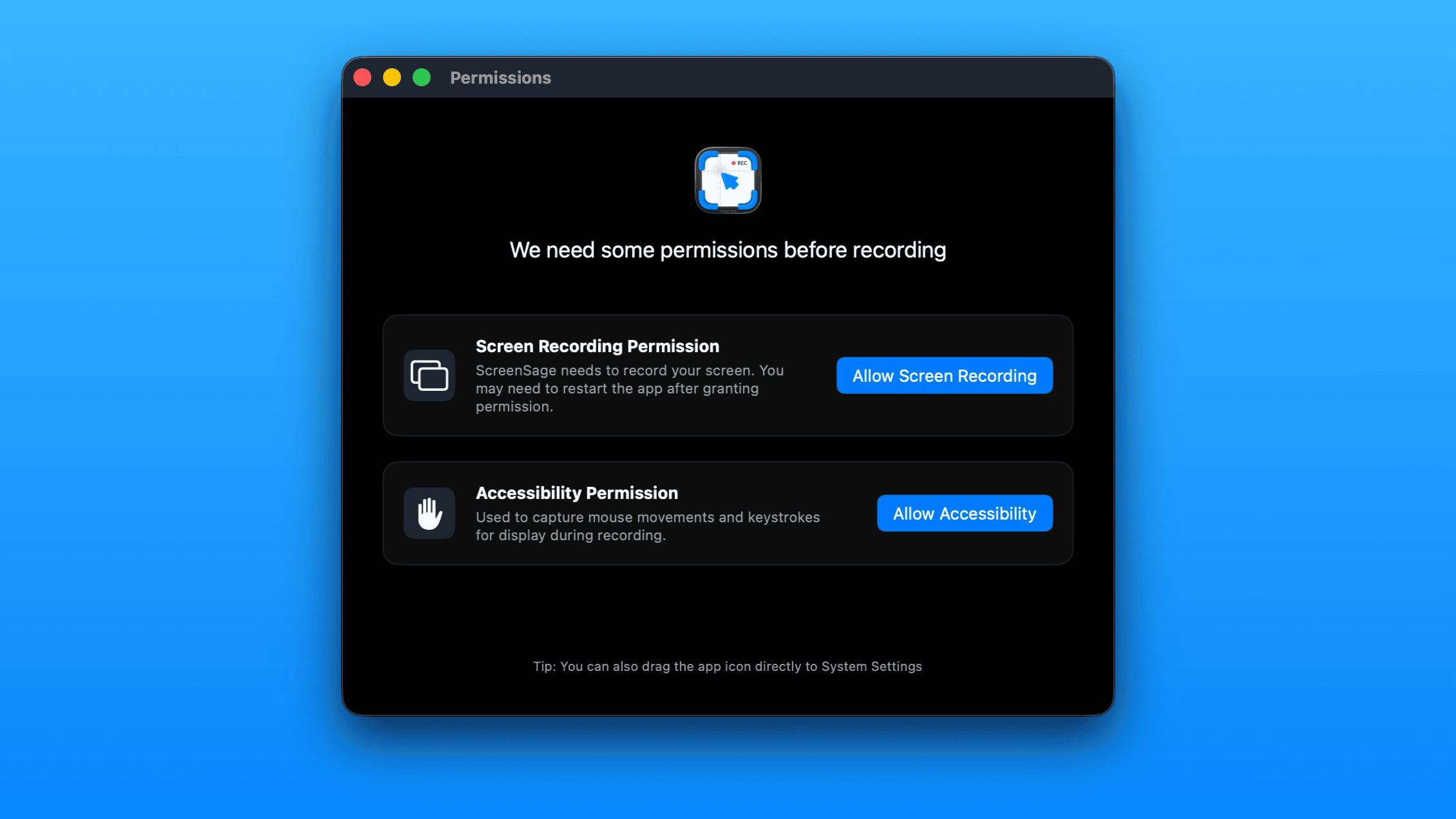
On your first recording attempt, ScreenSage Pro will prompt you to grant the necessary permissions.
- Screen Recording: Required to capture your screen and system audio
- Accessibility: Required to:
- Track mouse movement and clicks for auto-zoom features
- Monitor keyboard input and cursor position for text-follow zoom
- Replace cursor styles
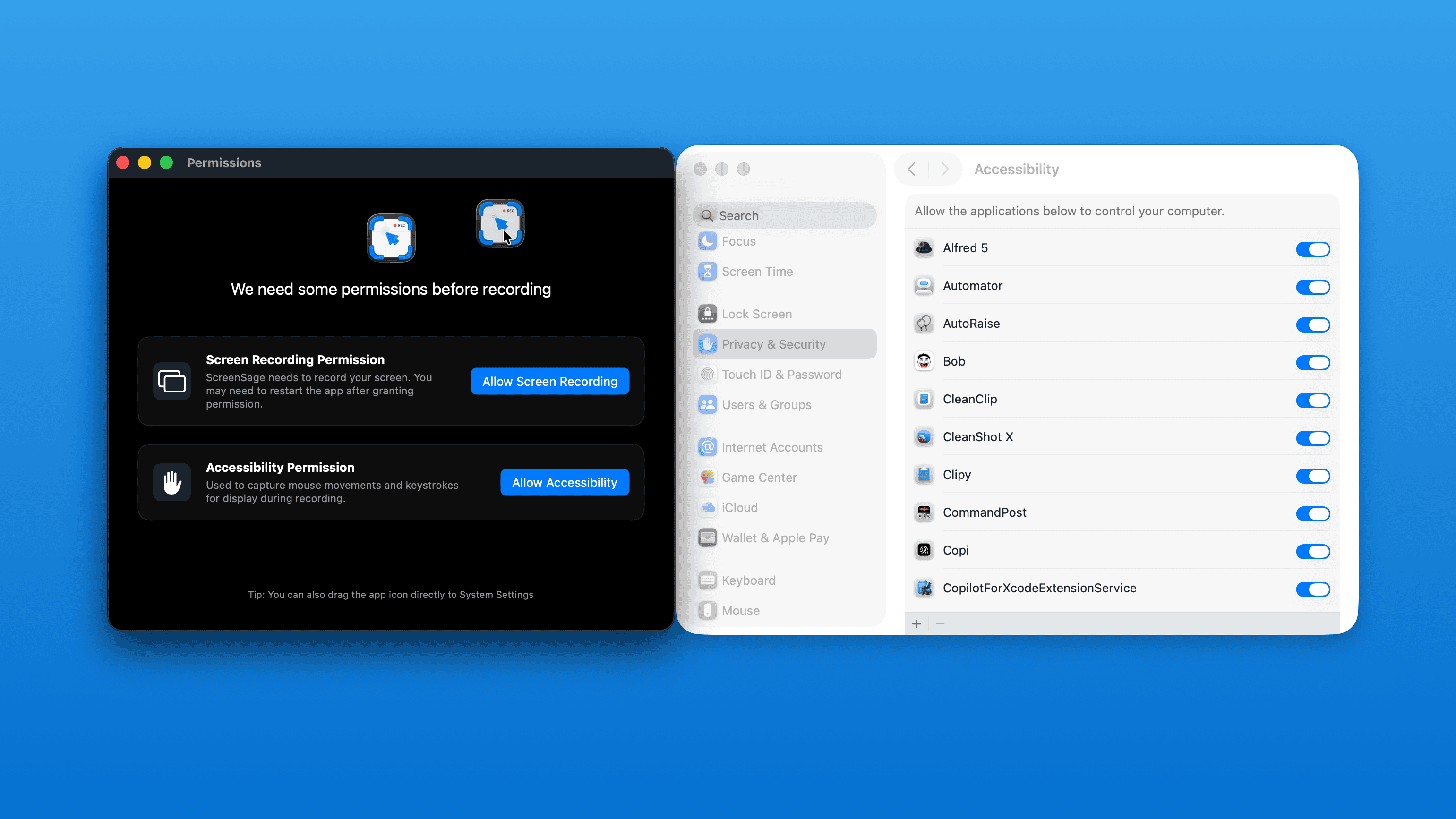
Follow the prompt to open the relevant permission settings
Drag the app icon into the settings list
Camera & Microphone
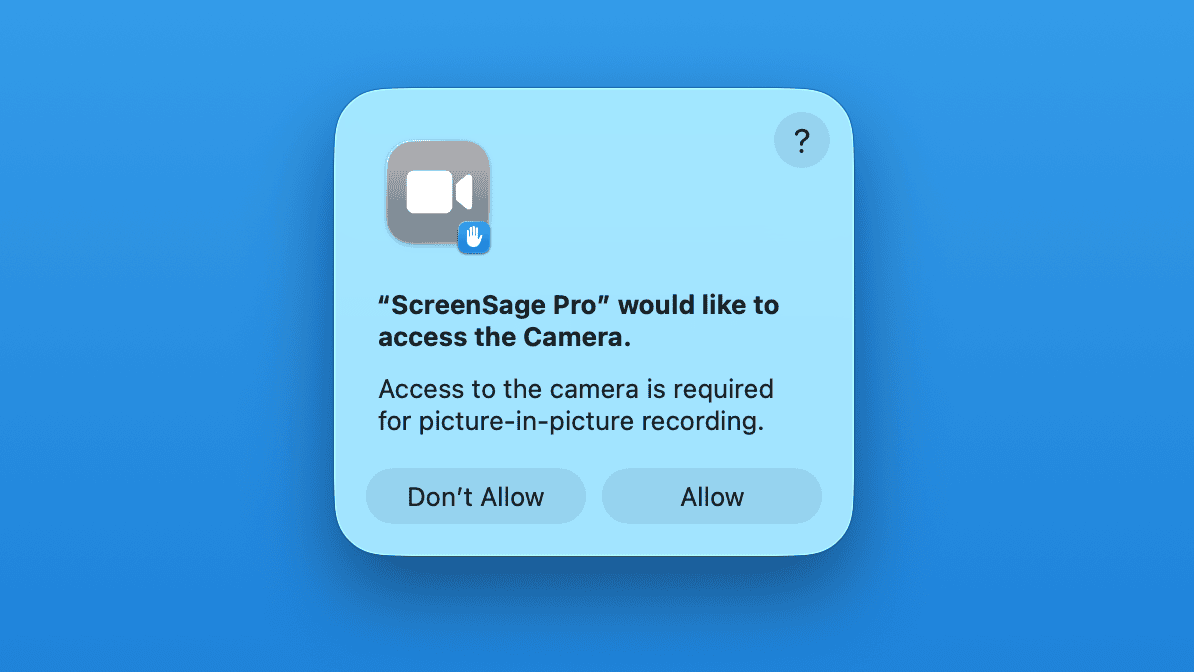
When you first use the camera or microphone, macOS will ask for permission.
If you denied permission on first launch, you can re-enable it in System Settings → Privacy & Security.
Once permissions are granted, you're ready to start your first recording!