 ScreenSage Pro
Marquee Borders and Mask Animation
Marquee borders are strong attention cues for short moments, such as feature entry points, call-to-action buttons, or important values.
Add a Border
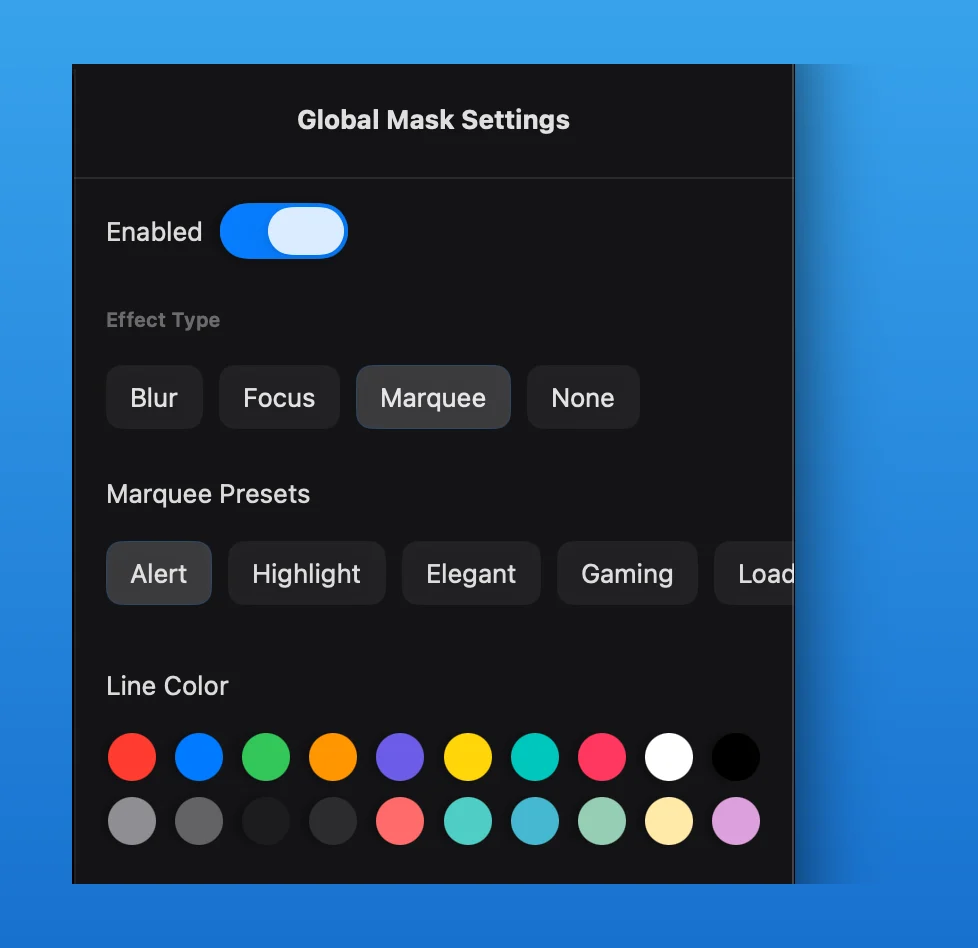
Move the playhead to an empty position on the Mask Track, insert a mask segment, and choose Marquee in the Mask Inspector. Adjust the mask area in the preview, then set line color, Line Width, and corner radius.
Use Marquee Presets
Choose Alert, Highlight, Elegant, Gaming, Loading, or Custom. Then set the start position, clockwise or counter-clockwise direction, and whether the animation loops. Animation Speed appears when looping is enabled.
The Mask Inspector also provides animation presets plus separate enter and exit durations. These control how the whole mask appears and disappears; they are not additional border types.