 ScreenSage Pro
Demo Mode
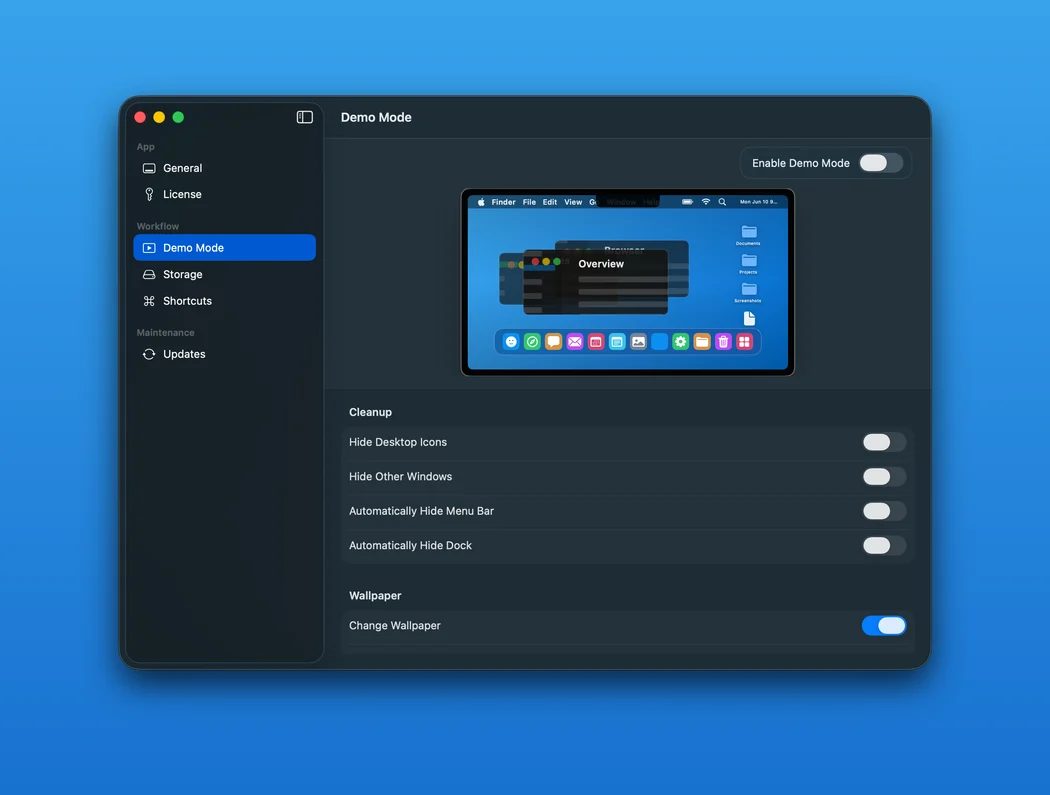
Demo Mode prepares a clean macOS environment before recording. It can hide desktop icons, hide other apps, switch wallpaper, and auto-hide the menu bar or Dock.
Open Demo Mode
Use the Demo Mode button in the recording floating panel, then choose the cleanup options you need.
Wallpaper and Cleanup
Use built-in wallpapers, gradients, solid colors, or custom wallpapers when the desktop may appear in the recording.
Restore After Recording
ScreenSage Pro tries to restore the visual state it changed when Demo Mode ends. It does not move or delete your desktop files.