 ScreenSage Pro
Teleprompter
The teleprompter helps with courses, demos, and talking-head recordings. Prepare a script before recording, then read it from a separate prompt window while recording.
Open the Teleprompter
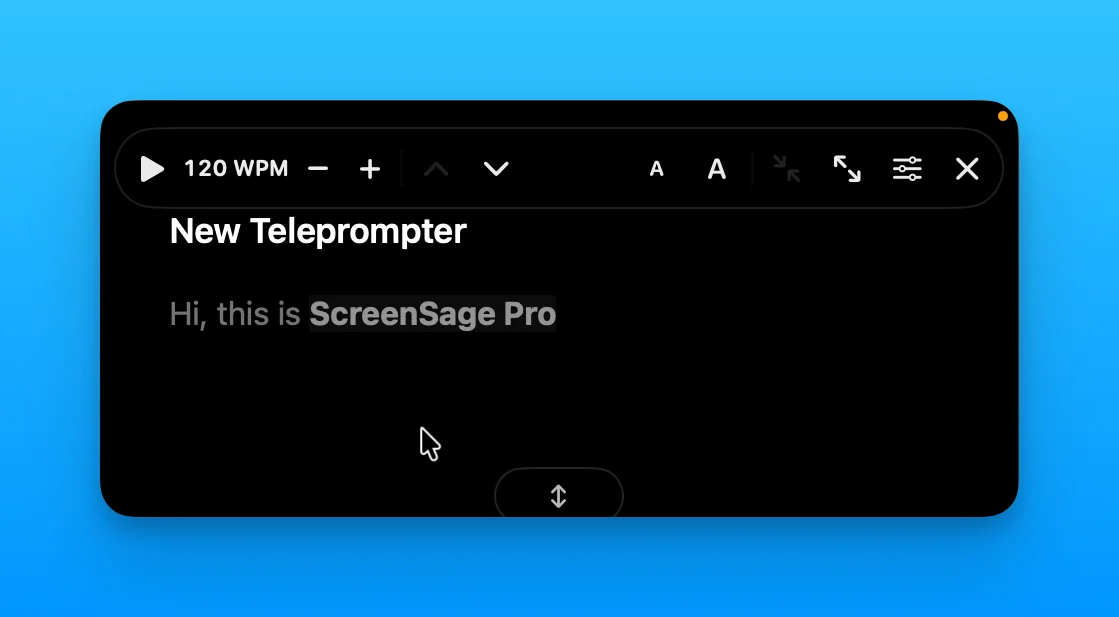
Click the teleprompter button in the recording control panel, then enter or paste your script. Set the text size, scrolling speed, and window position before the take.
Read While Recording
The prompt appears in a separate window that you can move and resize. During recording, you can start or pause scrolling, change the speed, drag the window, or close it.
Capture Check
The teleprompter is meant as a reading aid, not part of the final video. Do a short test recording if you record the full screen or a custom region.