 ScreenSage Pro
Webcam
ScreenSage Pro can record a webcam alongside your screen, adding a personal touch to your videos.
Camera Selection
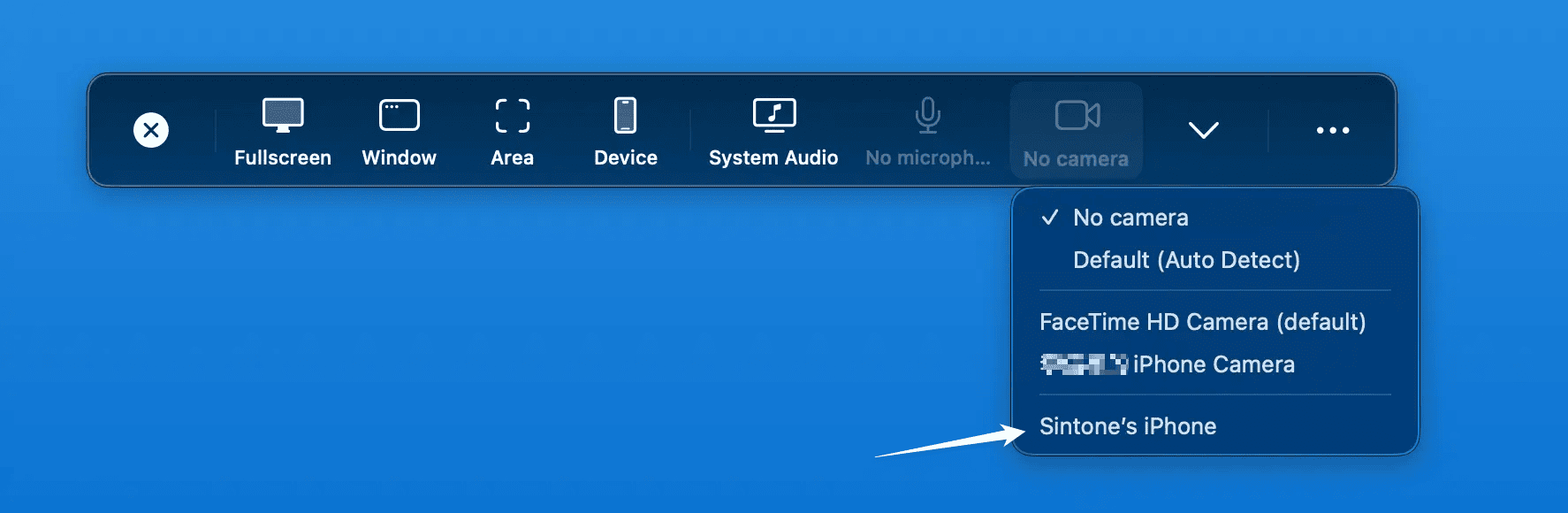
When no camera is selected, the recording panel shows "No camera". Click to select one.
Select a camera
Choose "Default (auto-detect)" to automatically use your system's default camera — useful when you have an external webcam. Or manually select a specific device.

Camera preview
Once selected, a preview window appears. The preview isn't recorded directly into the screen capture — instead, it's composited in post-production, giving you full customization control.
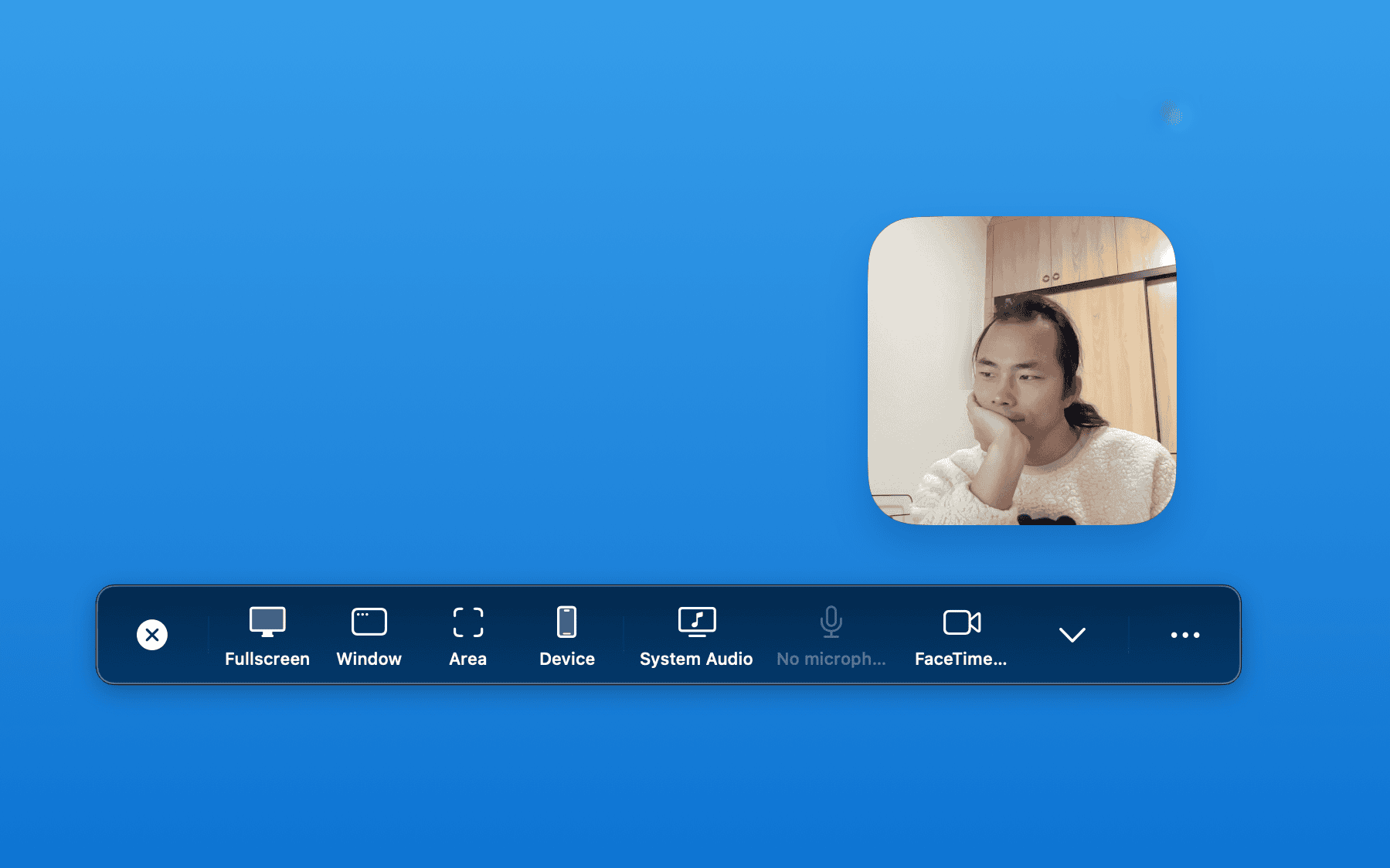
After recording, adjust shape, size, borders, and layout in the editor.
Our Dynamic Layouts feature enables smooth animated transitions between layouts, giving your videos a professional polish.
You can also use an iOS device as your camera source, enabling synchronized recording of both your Mac and iOS screens.